

Note: To access our IPTV service, you can install any app or player. In this beginner's tutorial, we will provide examples using the IPTV Smarters app. If you need help, our support team can guide you on the best app for your device.
How to setup IPTV Smarter on Fire TV Stick
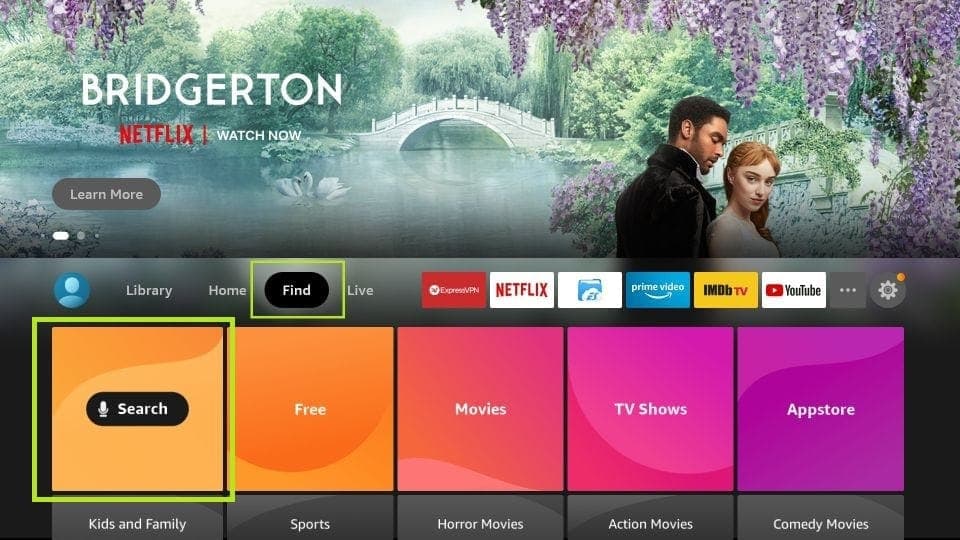
From the Home screen of your device, hover over the Find option.
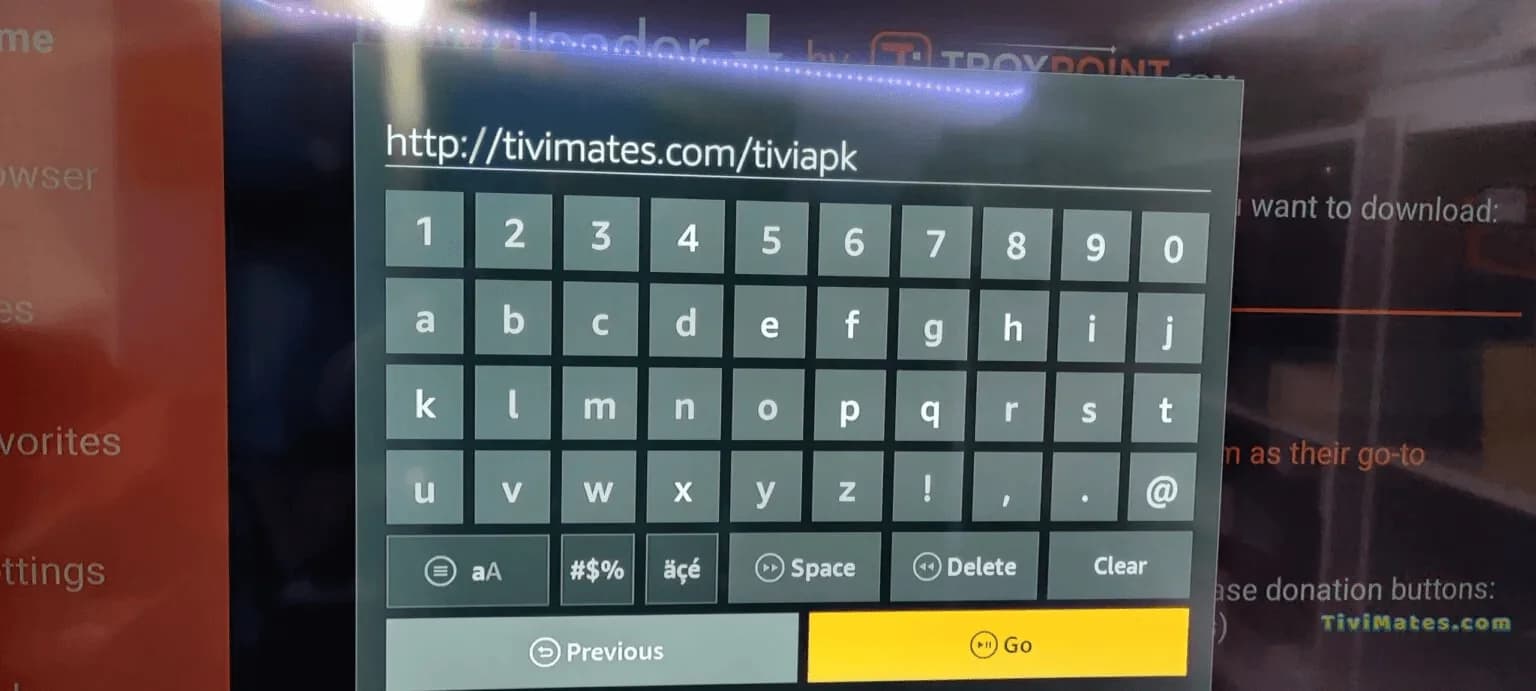
1. We will first install the Downloader app. This app will help you sideload IPTV Smarter on FireStick because browser downloads are not allowed.
2. Click the Find > Search option on the Home screen of FireStick.
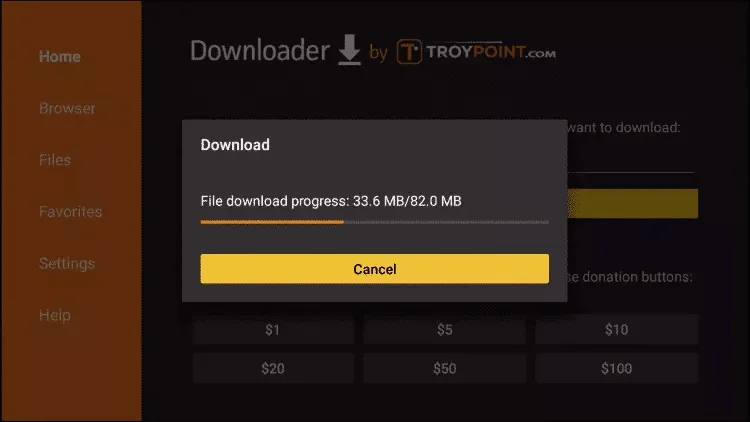
3. Type the name of the app, which is Downloader. Click the Downloader option when it is displayed in the search results.
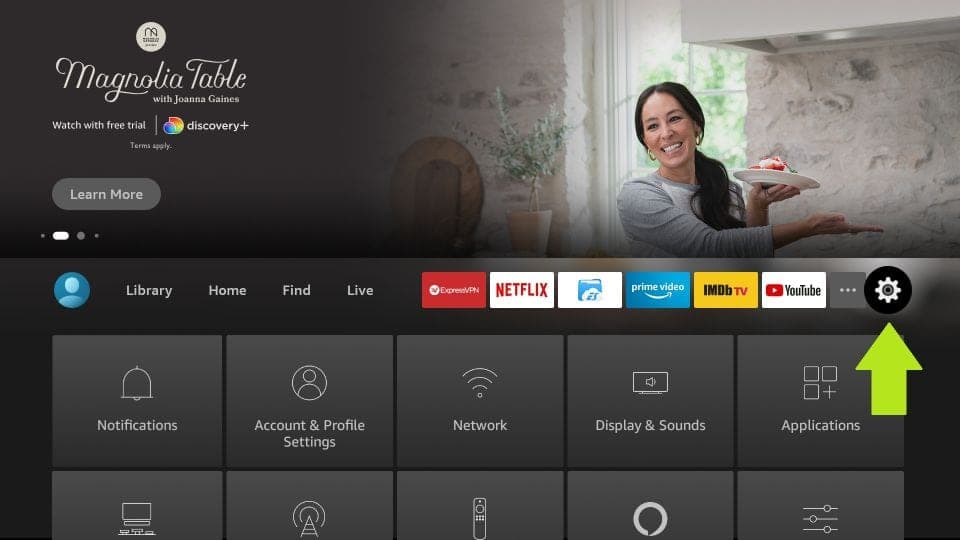
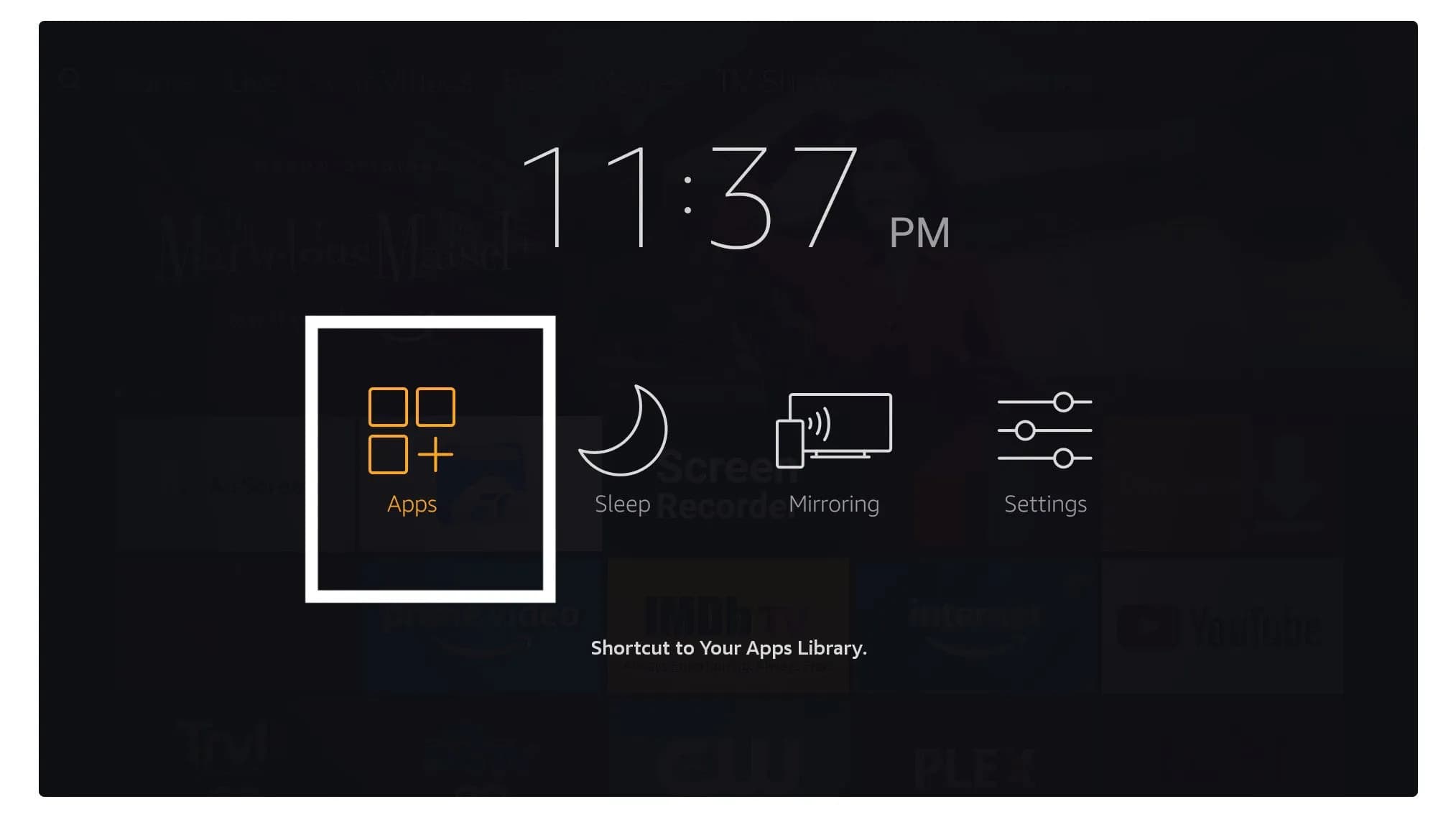
4. Go back to the Home screen after installing Downloader. In the menu bar, click Settings.
5. In the Settings screen, choose My Fire TV.
6. When the next set of options is displayed, click Developer Options.
7. Click Install unknown apps.
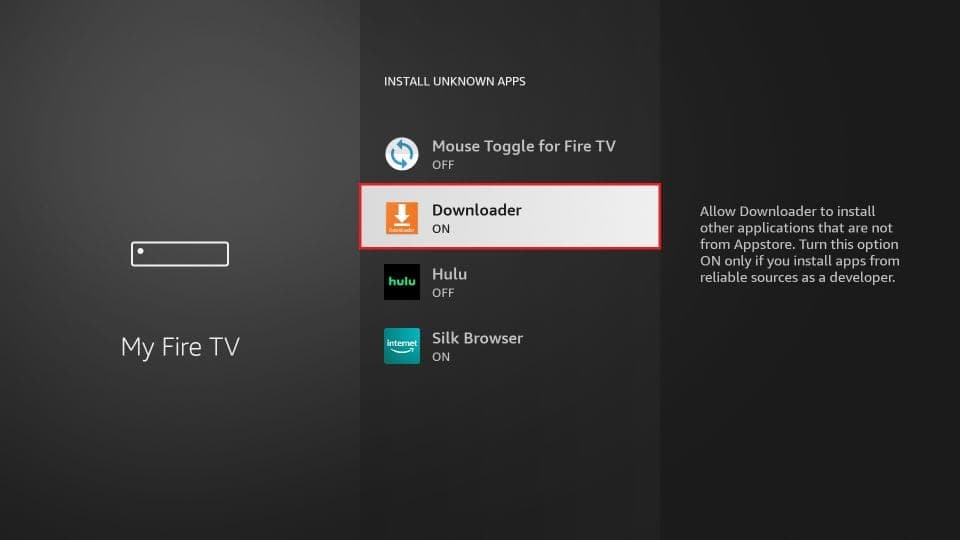
8. Click Downloader to change the status to ON.
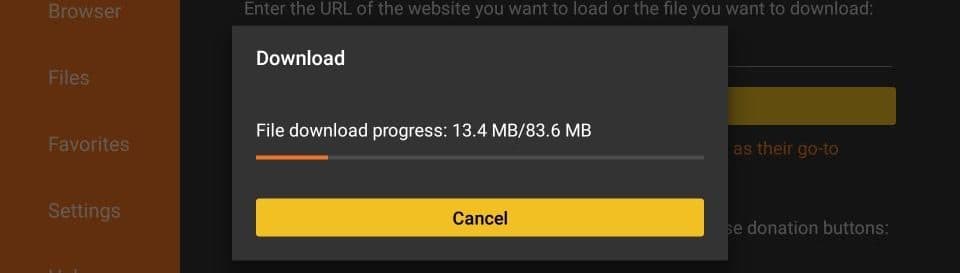
9. Wait until the IPTV app file finishes downloading.
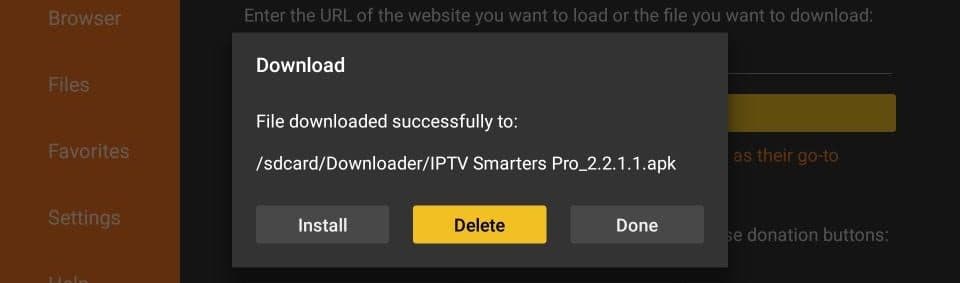
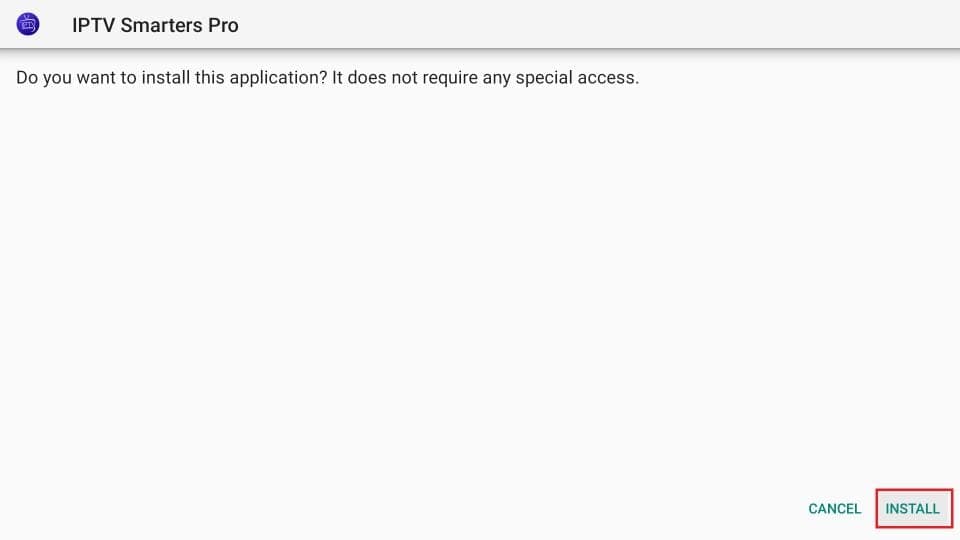
10. When the file is ready, choose Install.
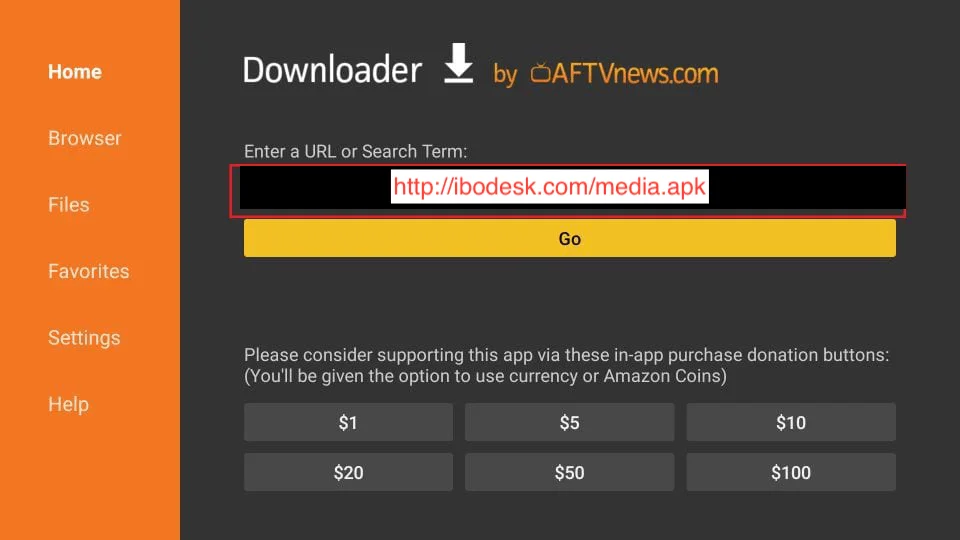
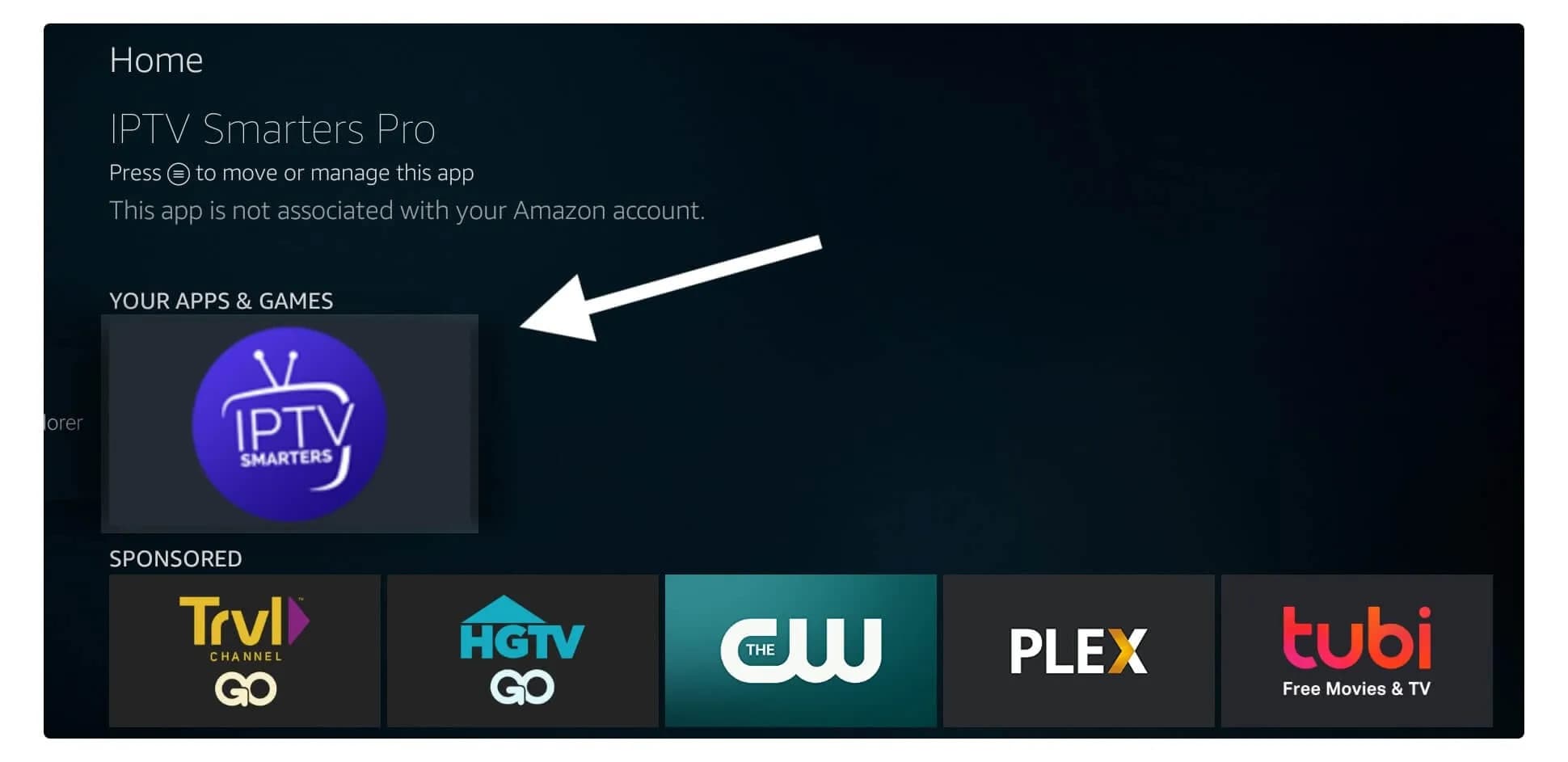
11. After the app is installed, choose Done or Open.
How to set up IPTV Smarters Pro
Use this method if you are installing on Android TV, Android box, FireStick, or a compatible TV app.
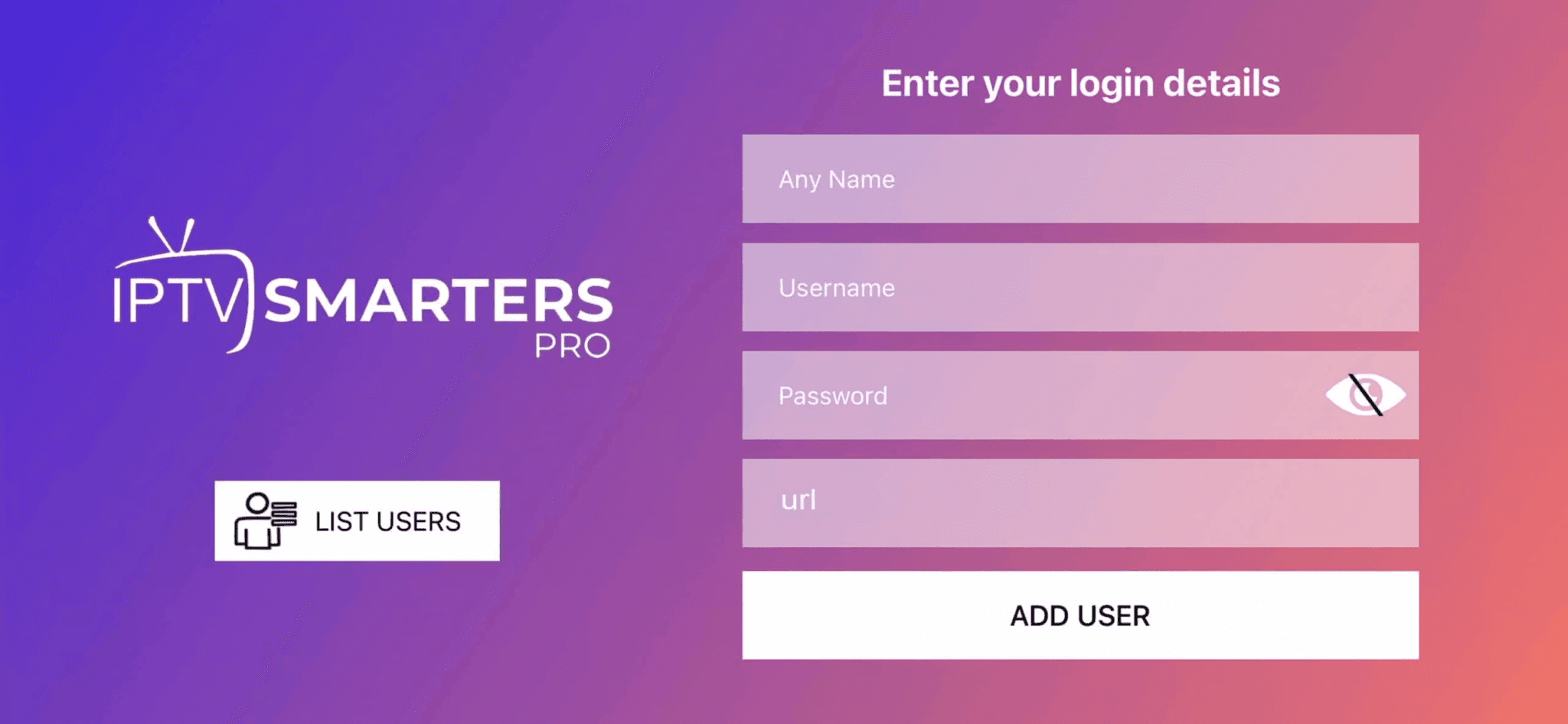
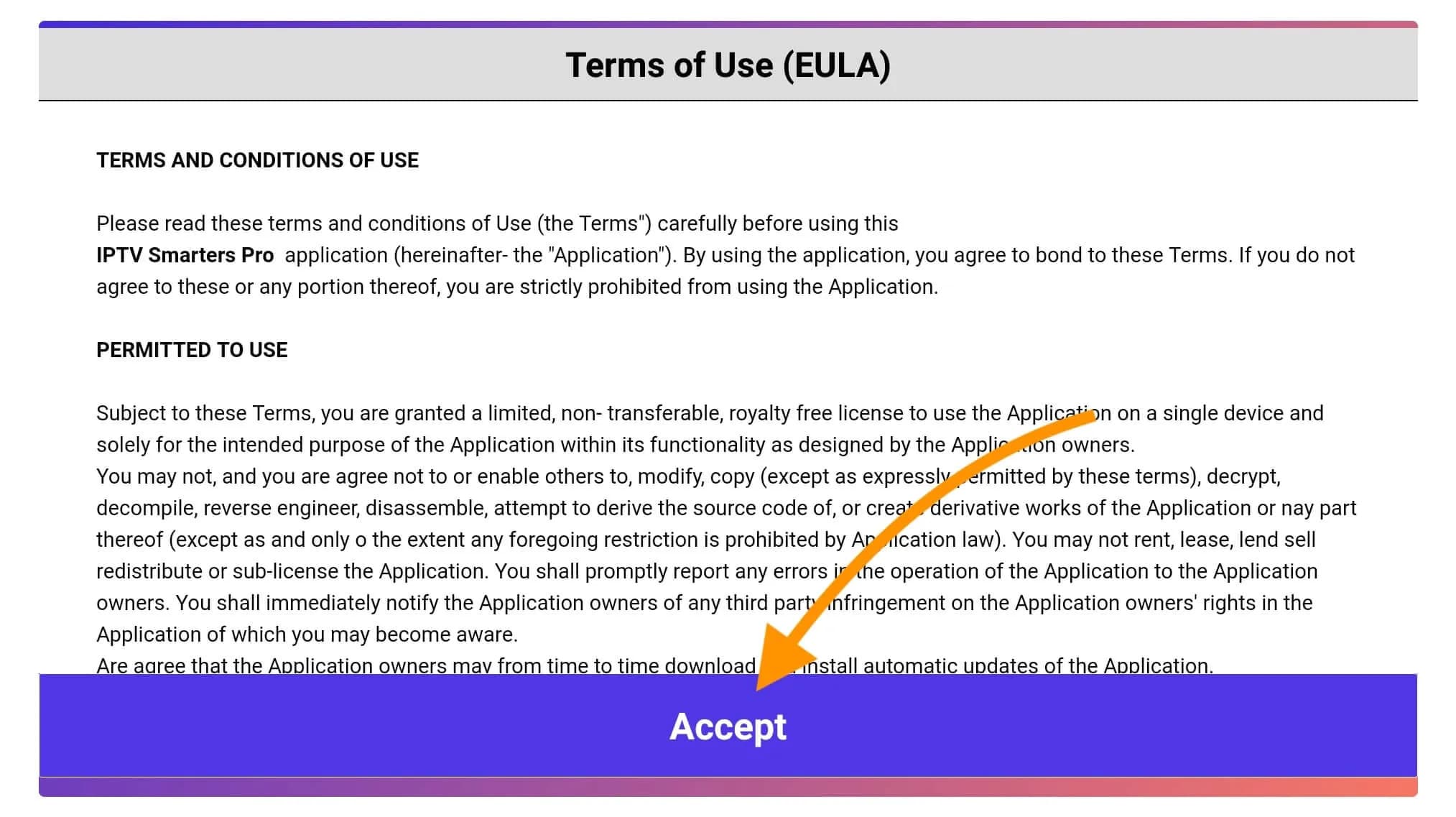
1. Open IPTV Smarters Pro and accept the Terms of Use.
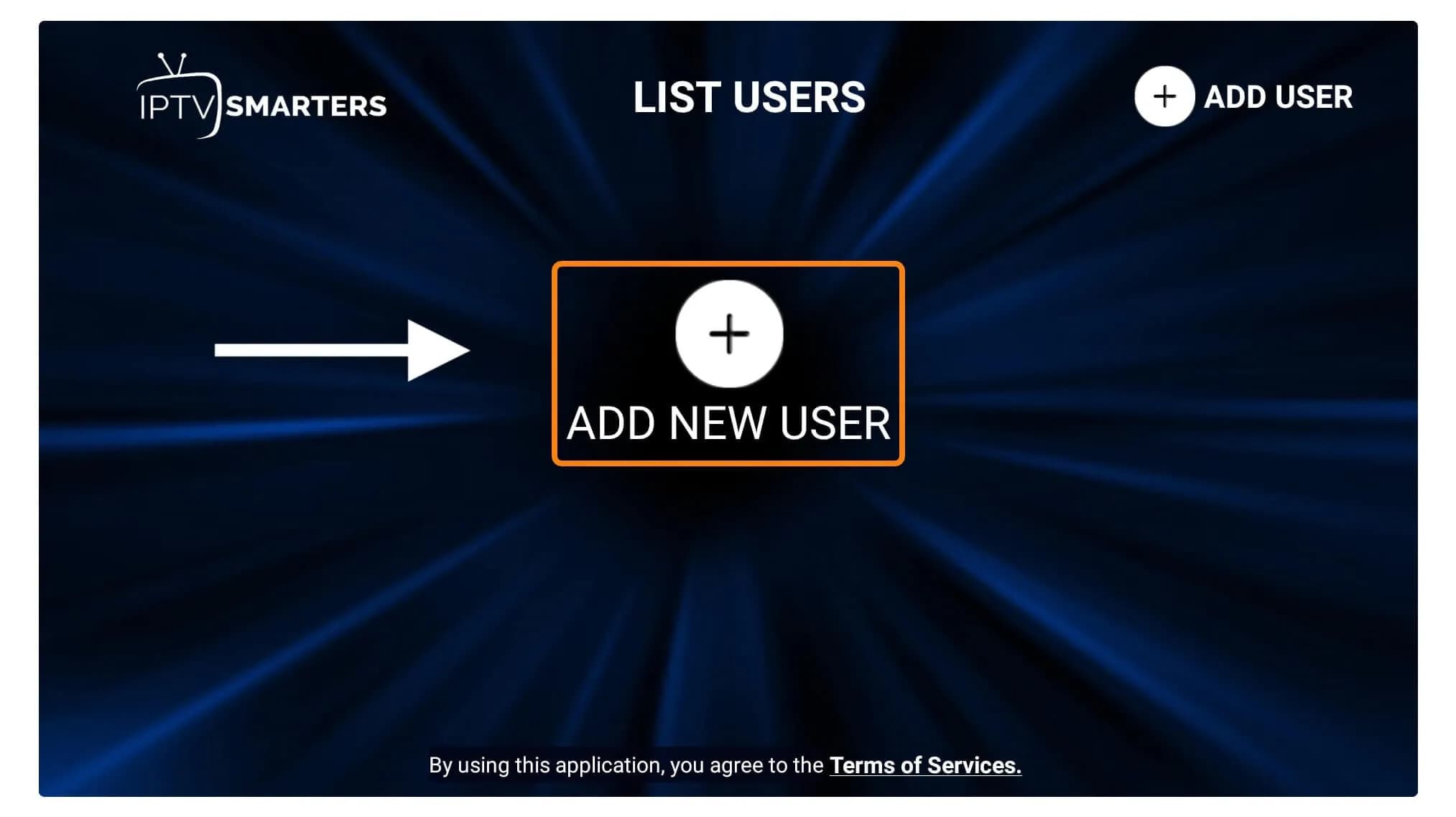
2. Choose Login with Xtream Codes API.
3. Click Add New User.
4. Enter any name, your username, password, and portal URL exactly as sent by Flash 4K IPTV.
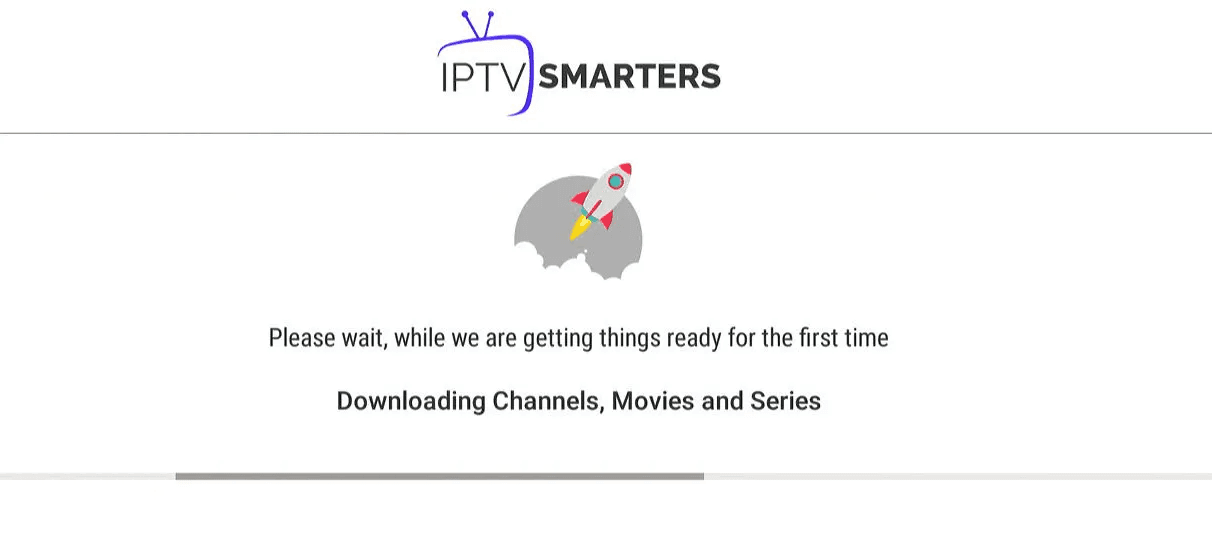
5. Wait while channels, movies, and series download for the first time.
6. Your account is now ready. Open Live TV, Movies, or Series and start watching.
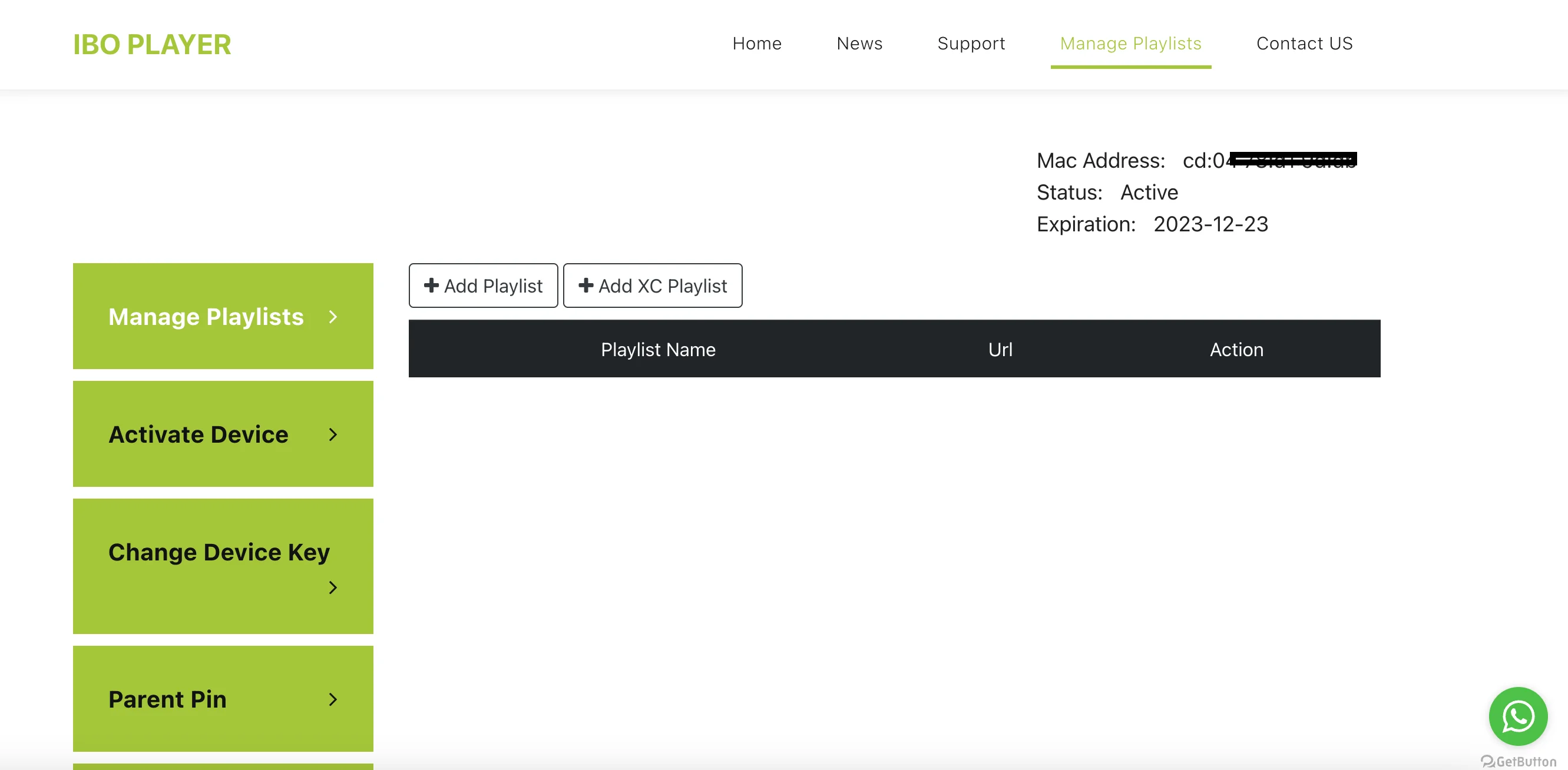
How to setup IPTV on Smart TV with IBO Player
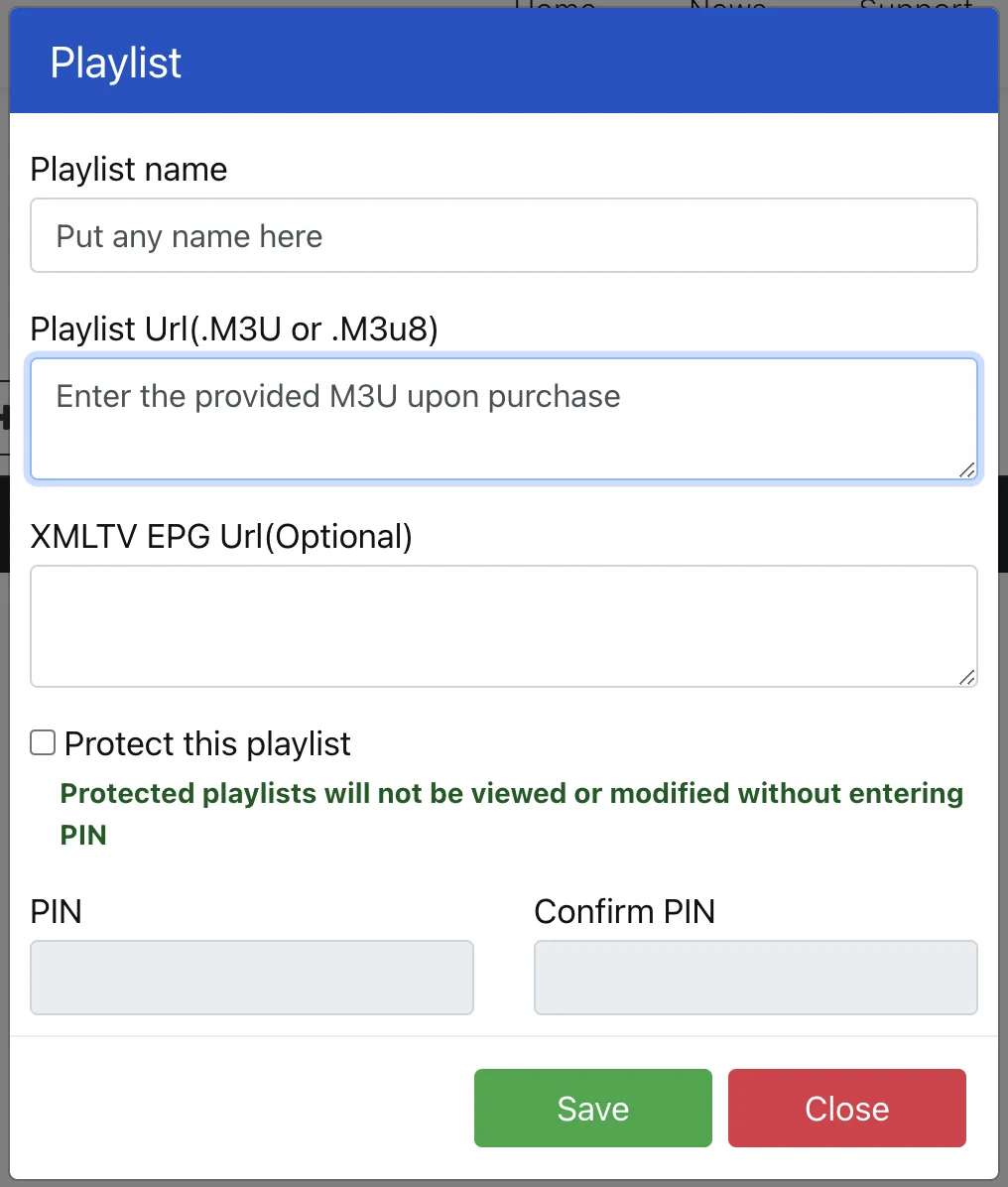
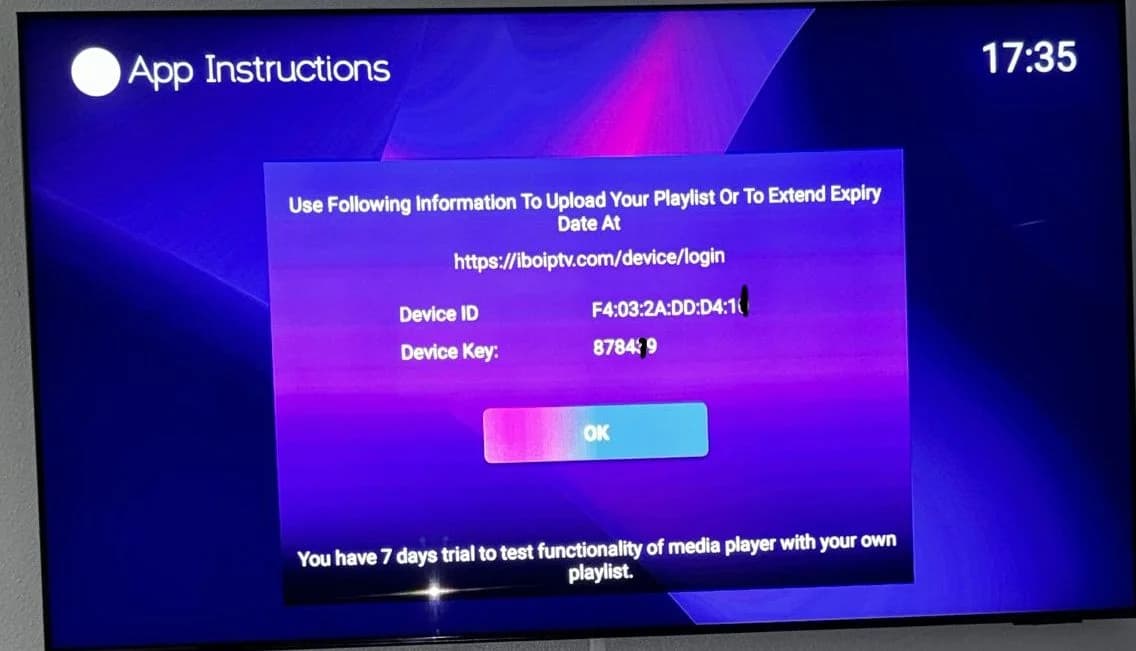
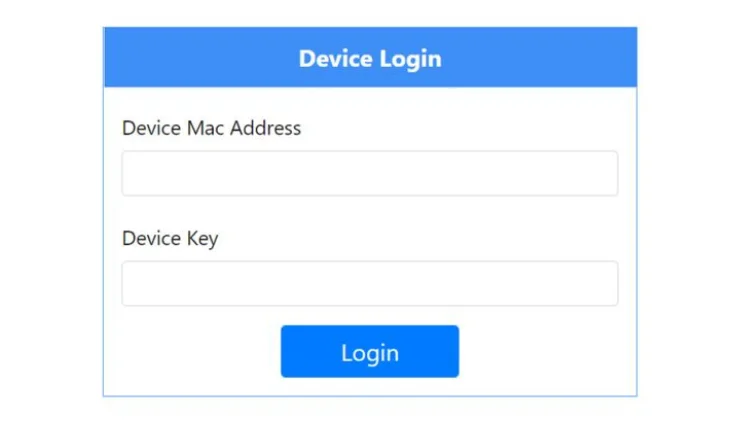
IBO Player is often used on Samsung, LG, and other Smart TVs. You will need the Device ID, Device Key, and playlist details.
1. Open IBO Player on your Smart TV and copy the Device ID and Device Key.
2. Use the Device Login page and enter the MAC address or Device ID with the Device Key.
3. Add the playlist name and the M3U playlist URL provided after purchase.
Apple IOS
Install an IPTV player from the App Store, then choose Xtream Codes or M3U login and enter the account details sent by Flash 4K IPTV.
1. Install an IPTV player from the App Store that supports Xtream Codes or M3U login.
2. Enter the username, password, and portal URL sent by Flash 4K IPTV support.
MAG
For MAG and STB devices, send your device MAC address to Flash 4K IPTV support. We will activate the portal for you.
1. Send your MAG or STB MAC address to Flash 4K IPTV support so we can activate the portal.
2. After activation, restart the device and reload the portal from your device settings.
Windows / Mac
On Windows or Mac, install an IPTV player that supports Xtream Codes or M3U, then enter your Flash 4K IPTV details.
1. Install a Windows or Mac IPTV player that supports Xtream Codes or M3U playlists.
2. Enter the account details from your activation email and wait for channels, movies, and series to load.